In lane Publishing Industry
Lulu Direct Dashboard Guide: Orders, Store Settings and Direct Sales
Description
A tour of Lulu Direct’s tools for connecting stores, managing orders and billing, importing orders, and selling books with buy buttons.

Lulu Direct gives authors and creators a way to sell print-on-demand books through their own websites while Lulu handles printing and fulfillment. Its dashboard brings store connections, order tracking, billing, and product management together, with options for both full ecommerce integrations and simpler ways to take direct orders.

The service connects with Shopify, WooCommerce, and Wix. Sellers can also use an Order Import tool or set up a Direct Buy Button. Lulu describes the service as free, with white-label fulfillment, custom packing slips, customer data retention, automated print fulfillment, and no need to manage inventory. Sellers keep 100% of profits, and orders can be printed through Lulu’s global network.
Start with the dashboard
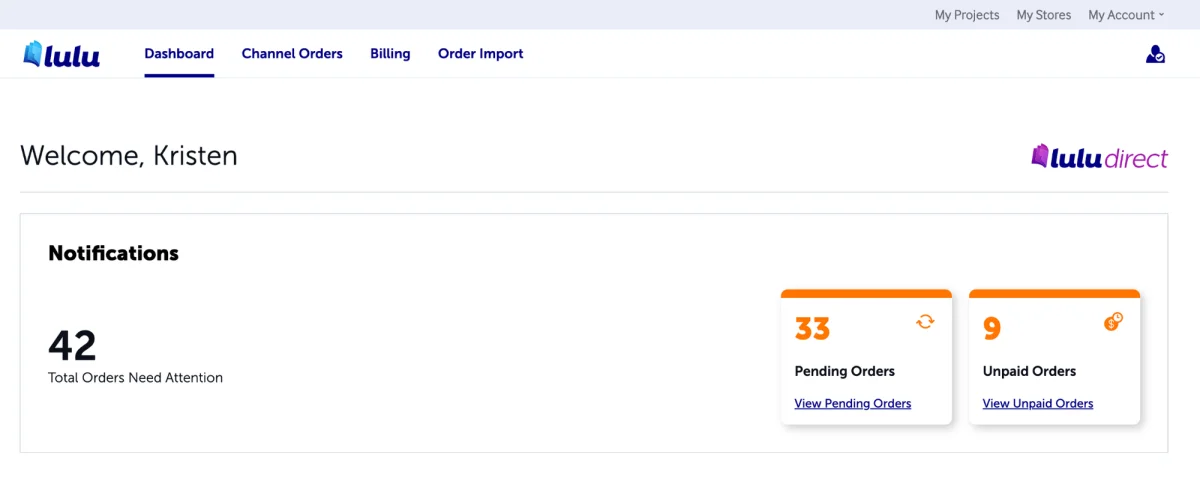
After creating a free account, users can reach the Dashboard by choosing My Stores from the top of the Lulu homepage. Its main navigation includes Dashboard, Channel Orders, Billing, and Order Import.
Notifications appear at the top of the dashboard to flag orders needing attention. In the example shown in Lulu’s guide, nine orders are awaiting payment before production can begin.
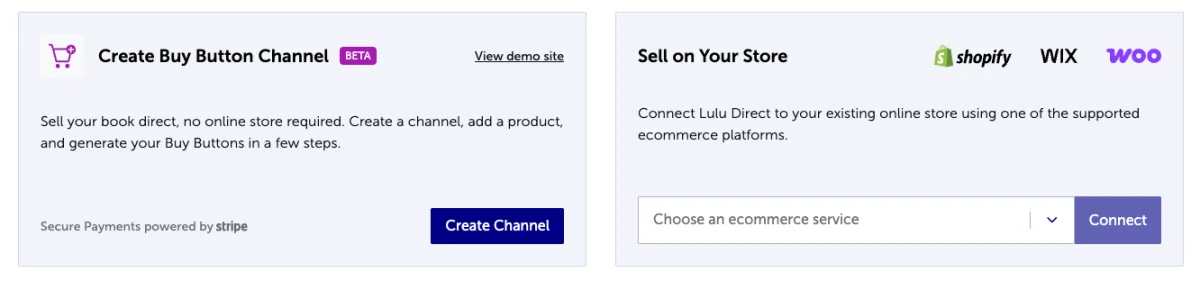
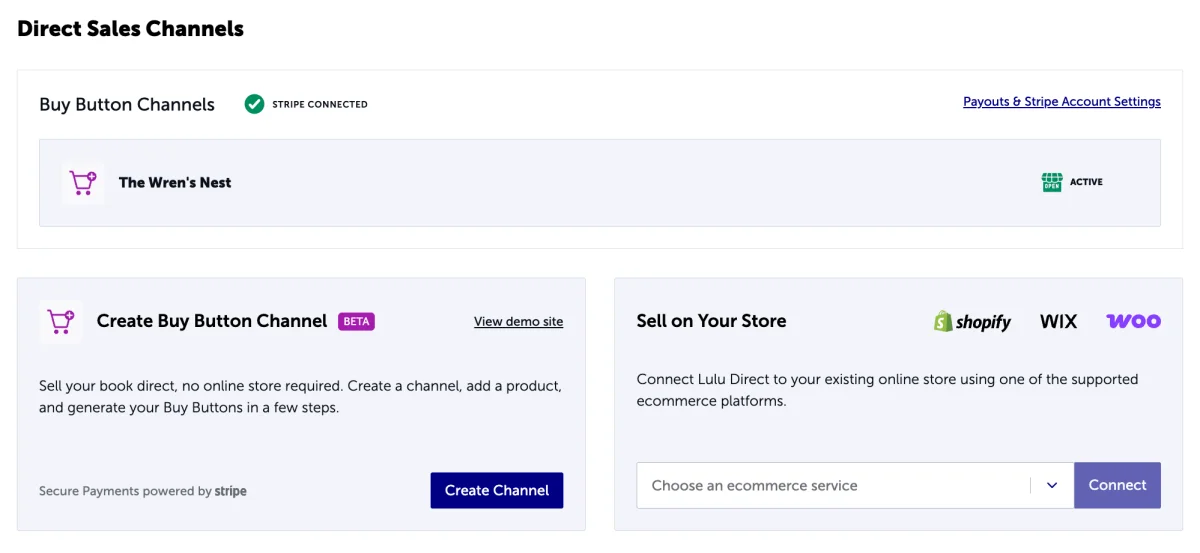
The Direct Sales Channels area displays connected stores and lets users connect another store or create a Direct Buy Button Channel. More than one store can be connected to an account. The walkthrough uses WooCommerce, though Lulu says the process is the same for Shopify and Wix integrations. Users can begin by selecting Connect or Create Channel.
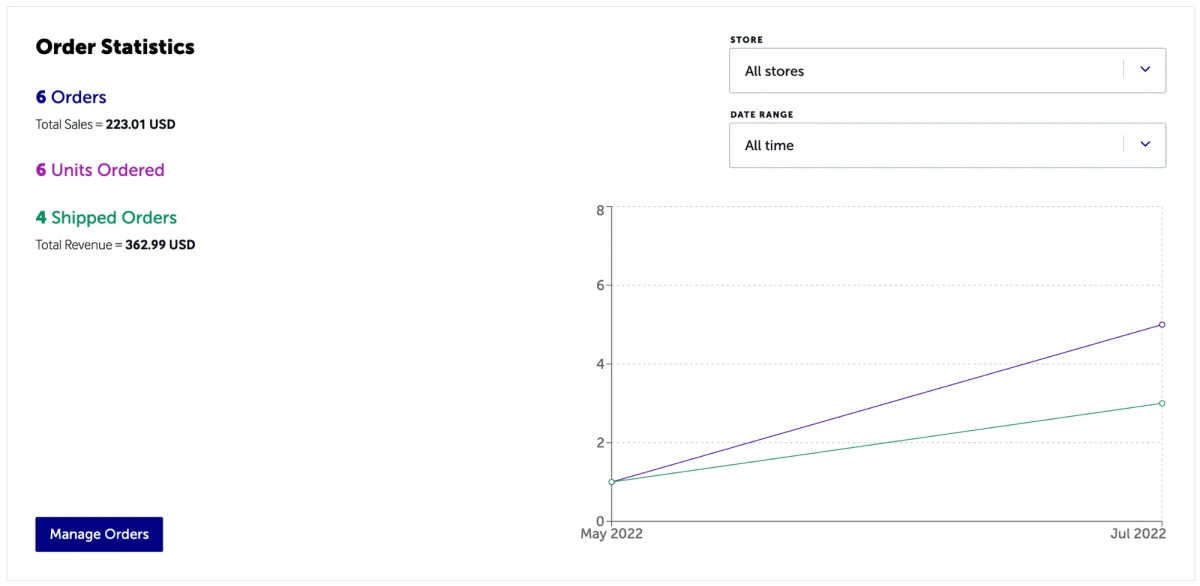
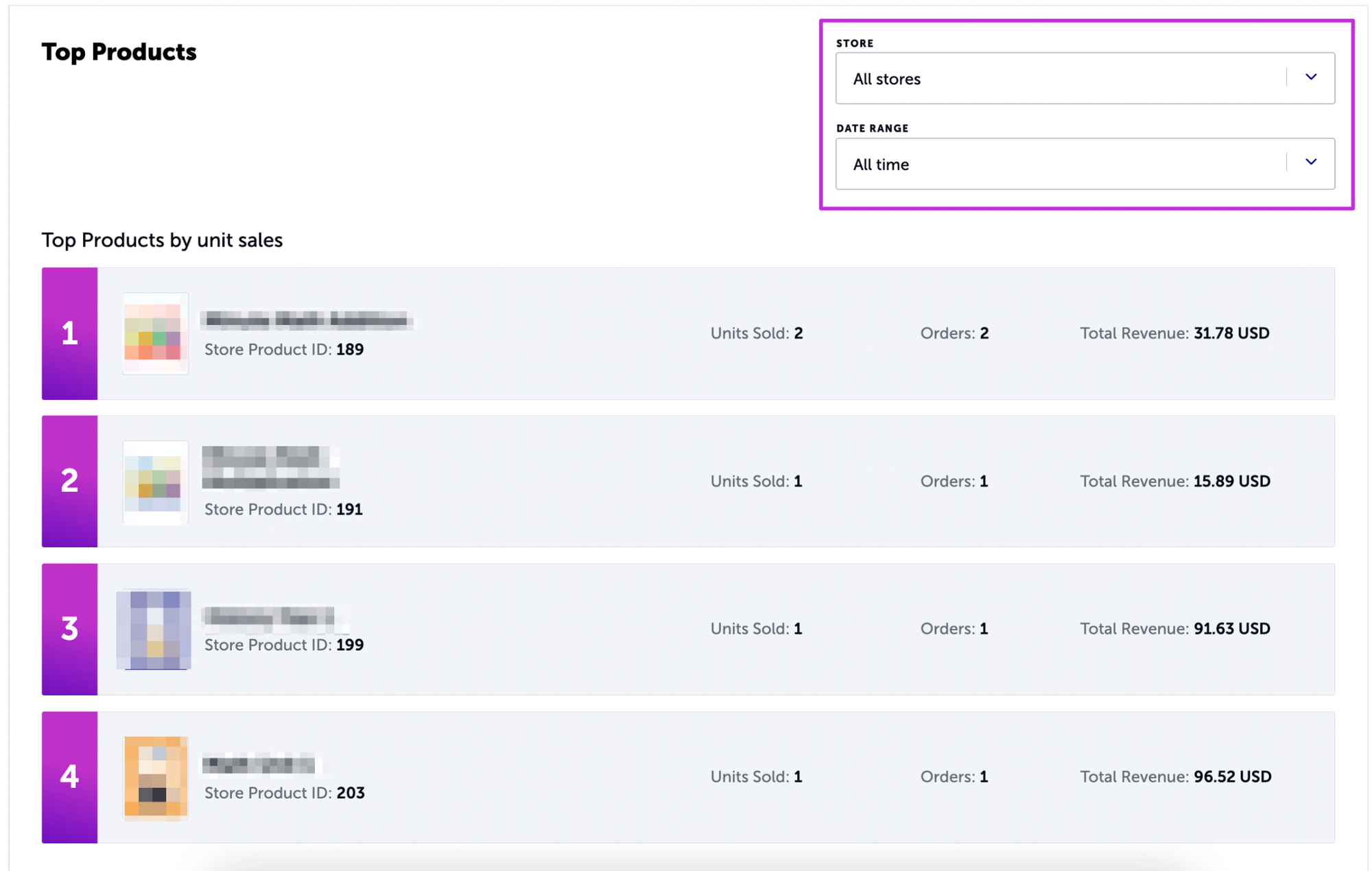
Below the channel list, Order Statistics and Top Products give sellers a quick view of store activity and product performance. Both sections can be filtered by date range and store, making it easier to review results across different sales periods or storefronts.
Track orders and payments
Channel Orders collects orders from connected sales channels in one view. Sellers can filter by date or status and search by order number. Opening an order shows its details and the actions available for its current status.
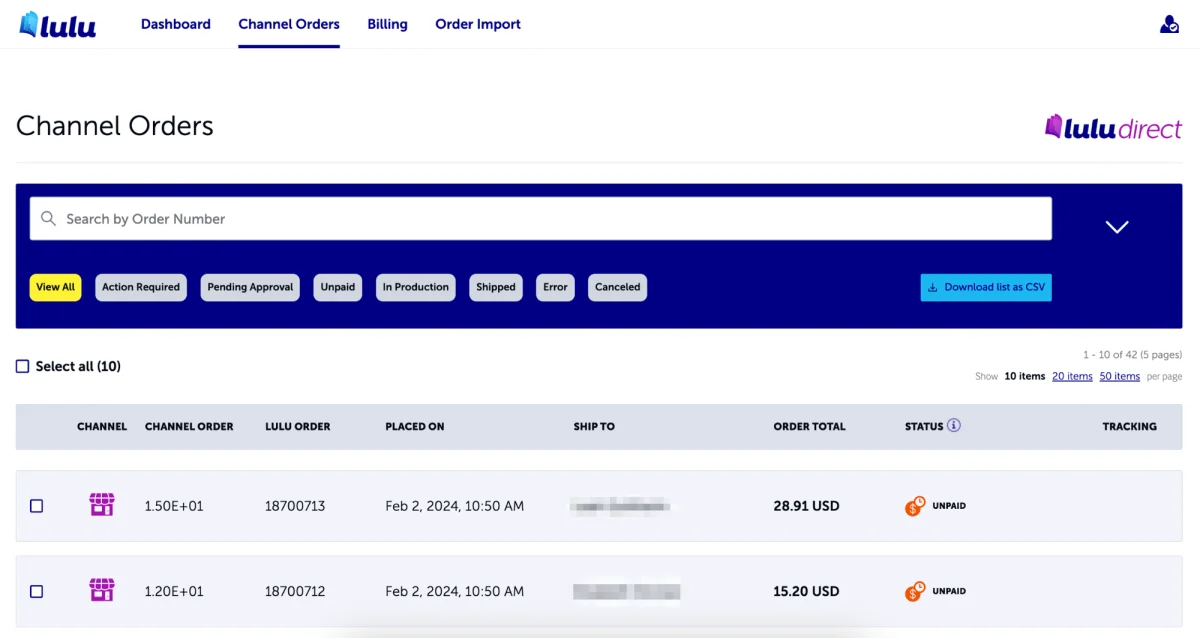
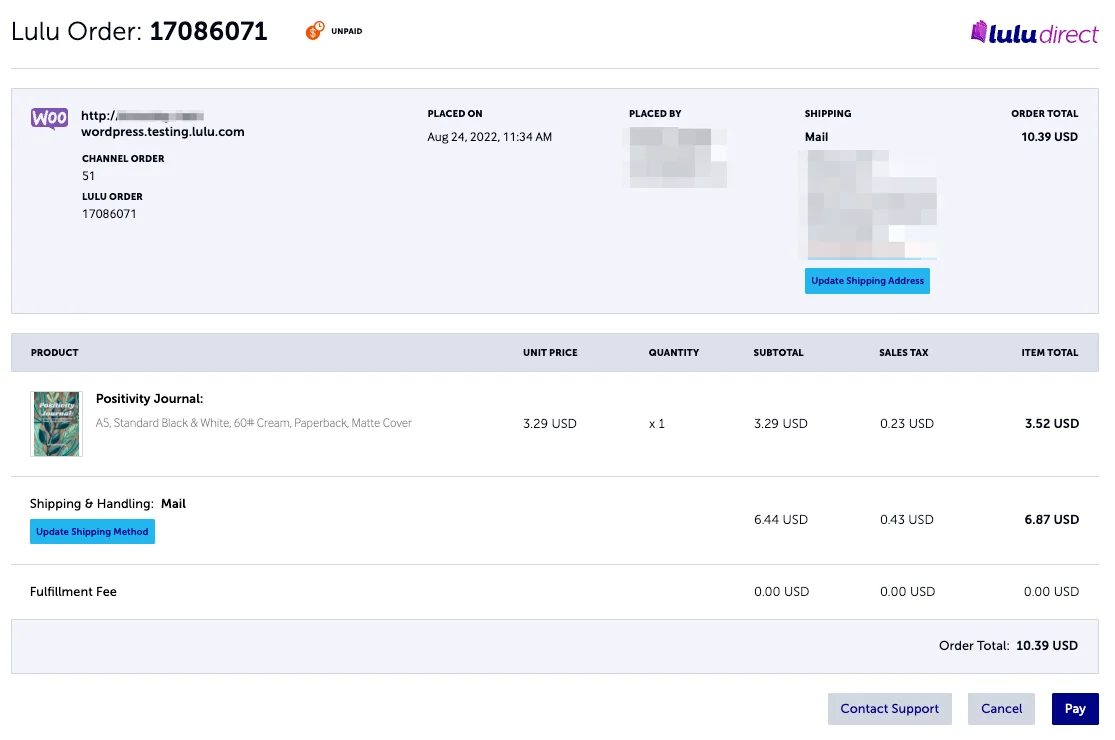
For an unpaid order, the details page allows the seller to change the shipping address or method, pay, cancel the order, or contact support. Once an order is in production or has shipped, contacting support is the available action. Shipped orders may also show tracking information.
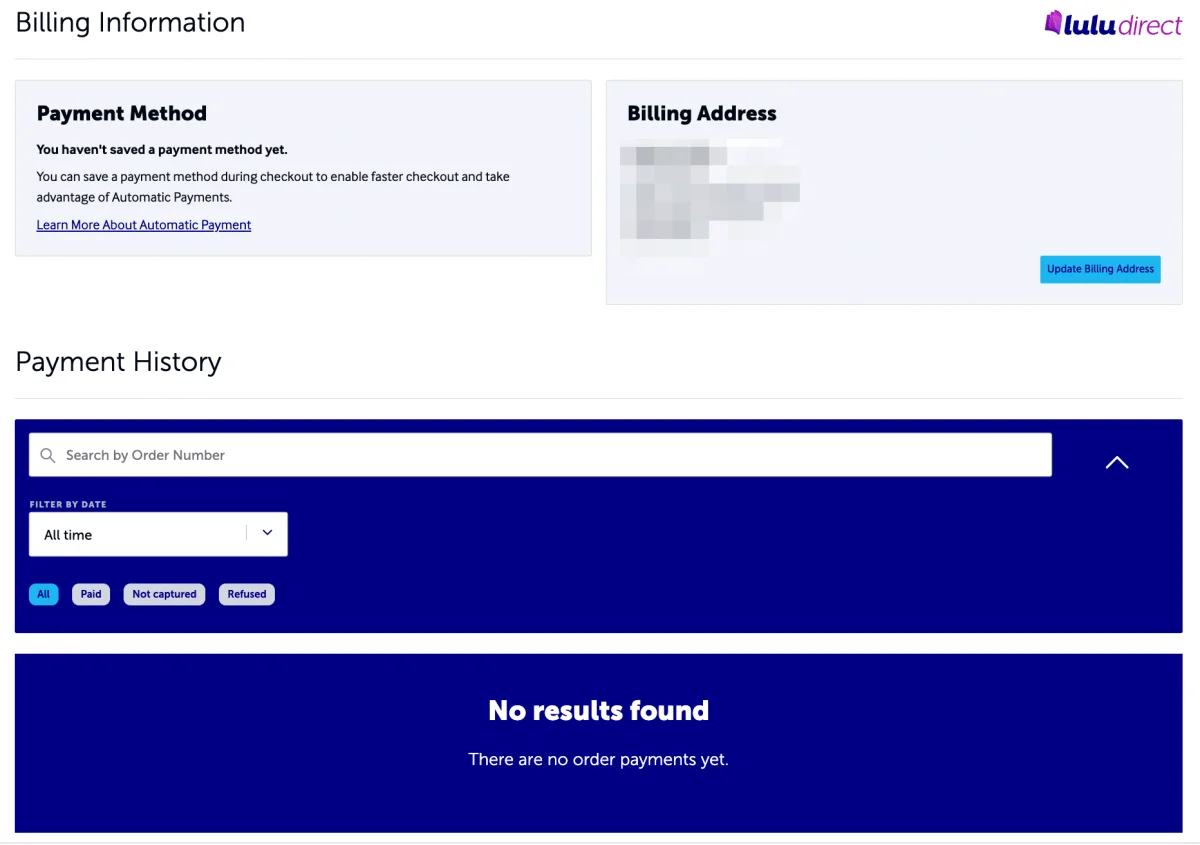
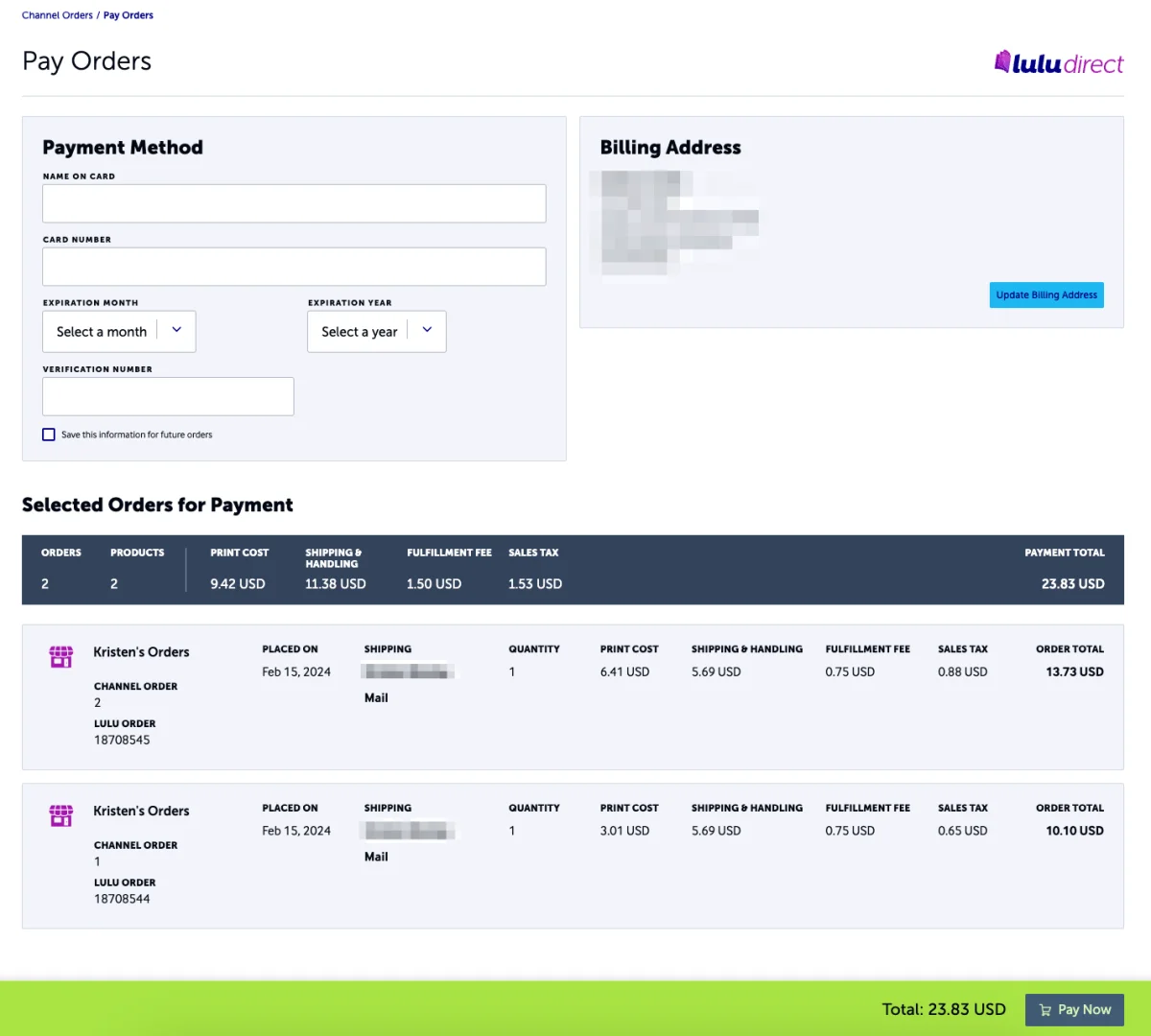
The Billing page shows payment history and provides controls for automatic payments and the billing address. Payment history can be filtered by order number, date, and status; users can also download a spreadsheet of order details.
Import orders and sell without a full store
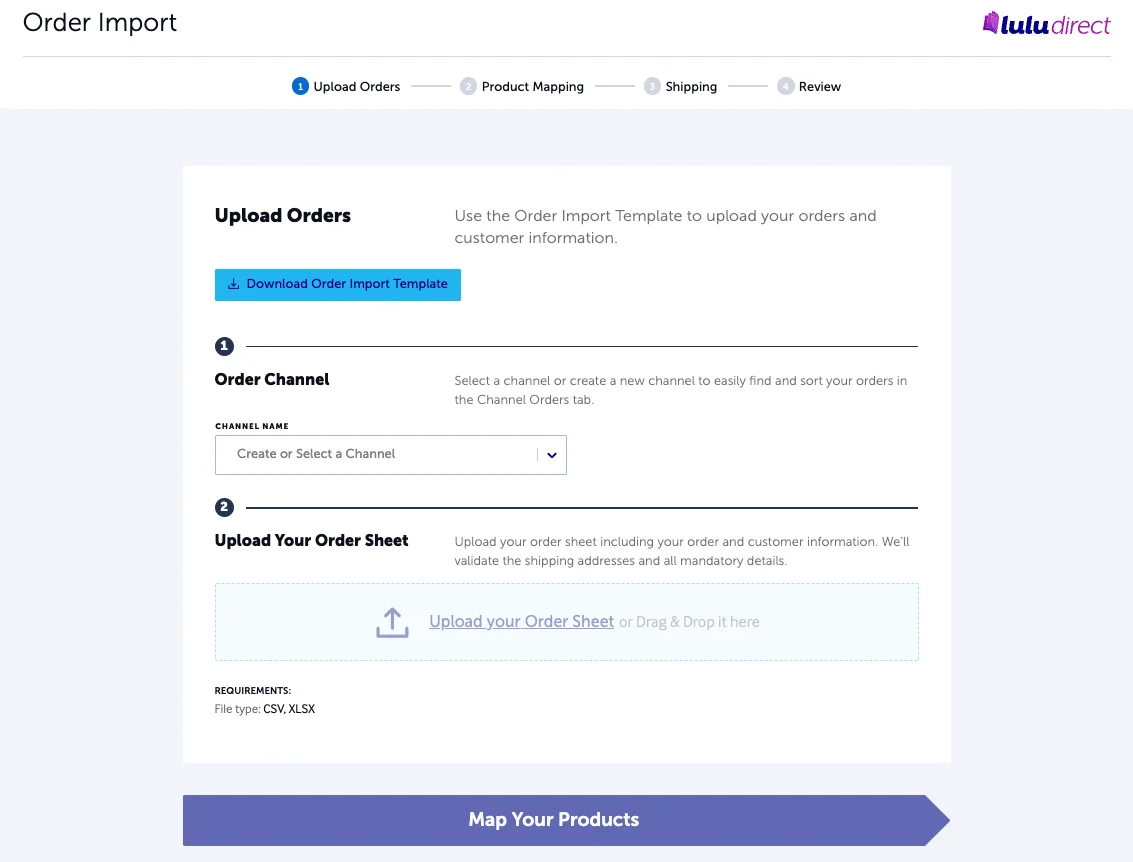
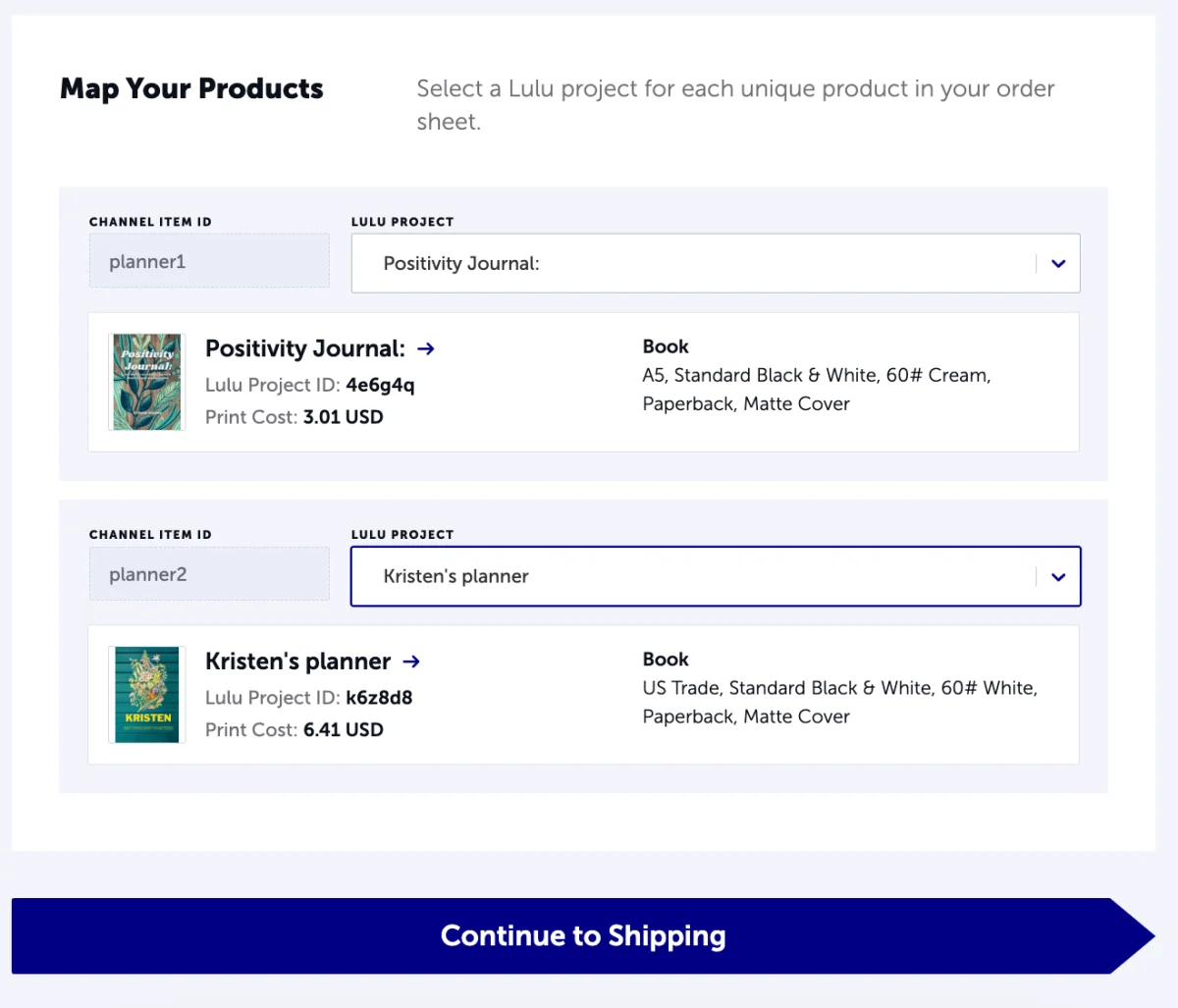
Order Import supports orders collected outside the connected store integrations. Sellers can upload a CSV or XLSX containing orders for published Lulu projects, including orders gathered at in-person events, website pre-orders, or through platforms such as Kickstarter.
The workflow starts with a spreadsheet prepared to match Lulu’s template. The seller names the import channel—for example, “Kickstarter 2024”—and uploads the file. Next, each order is matched to an existing published Lulu Project. After choosing a shipping option and paying, Lulu prints and ships the orders with white-label fulfillment. The full Order Import Tool instructions are available in the help center.
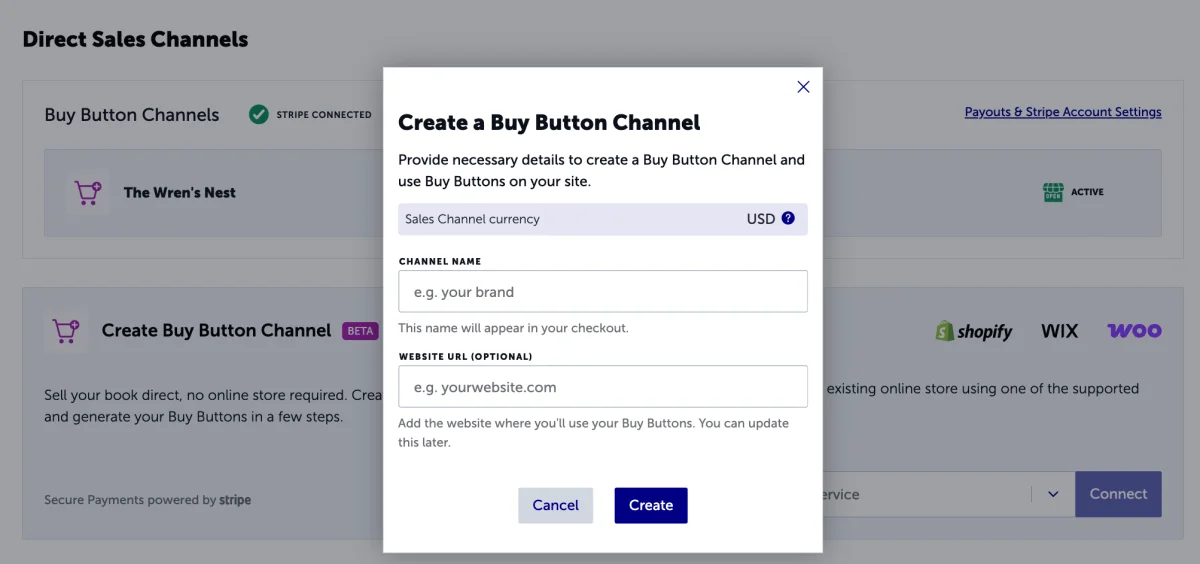
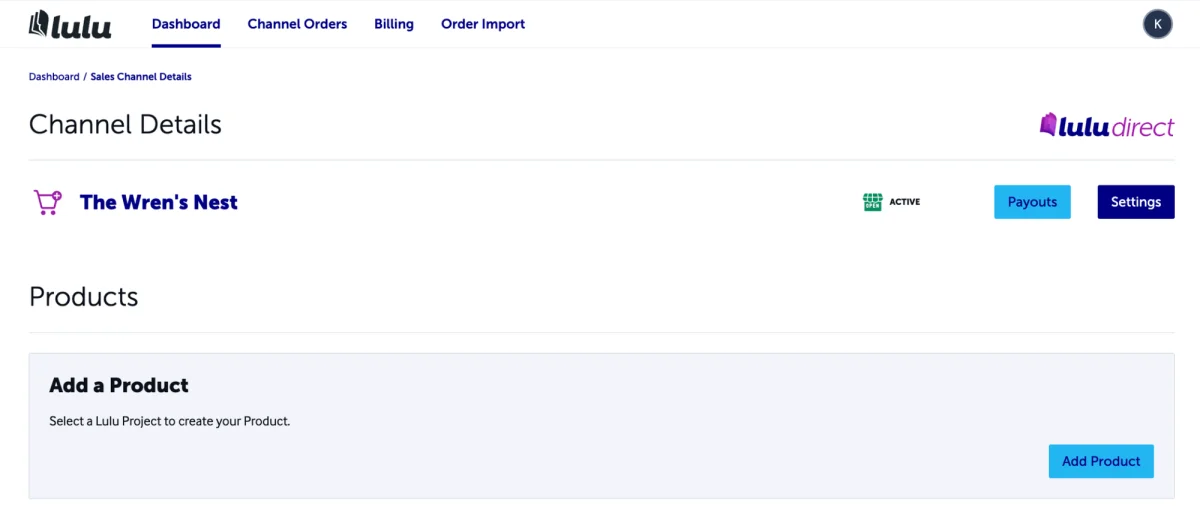
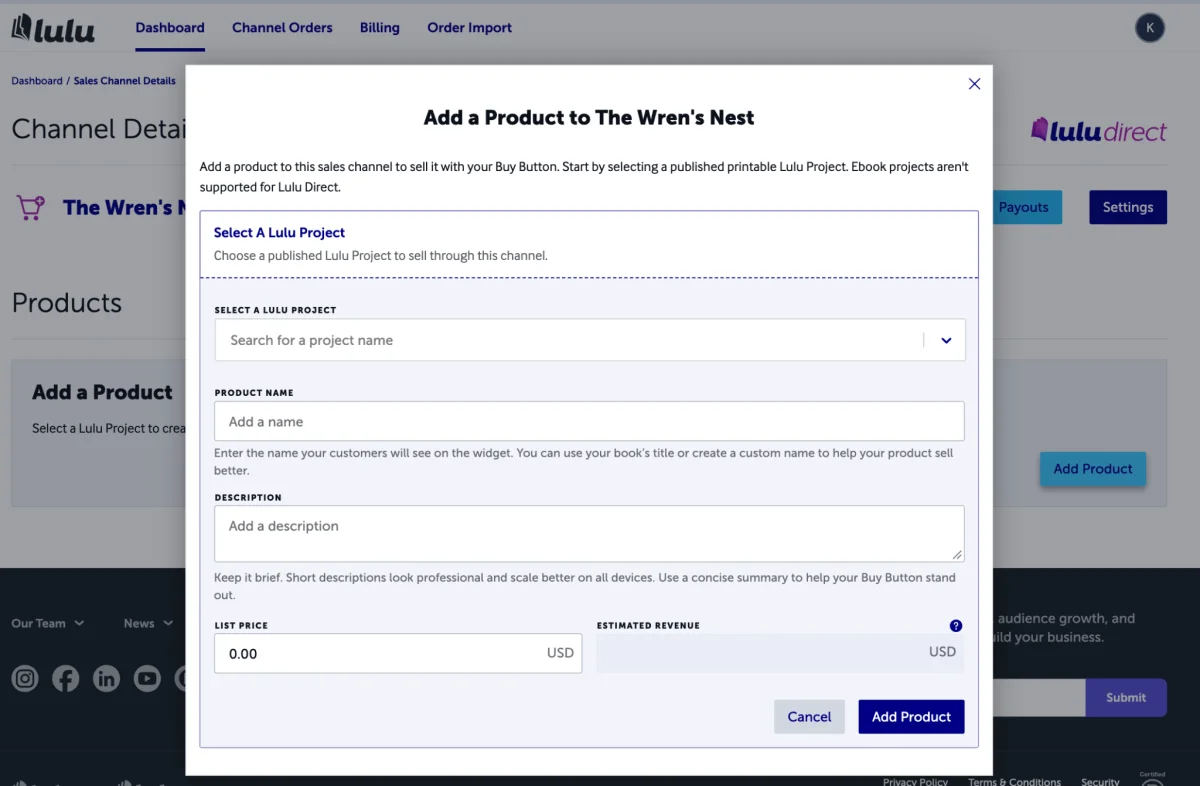
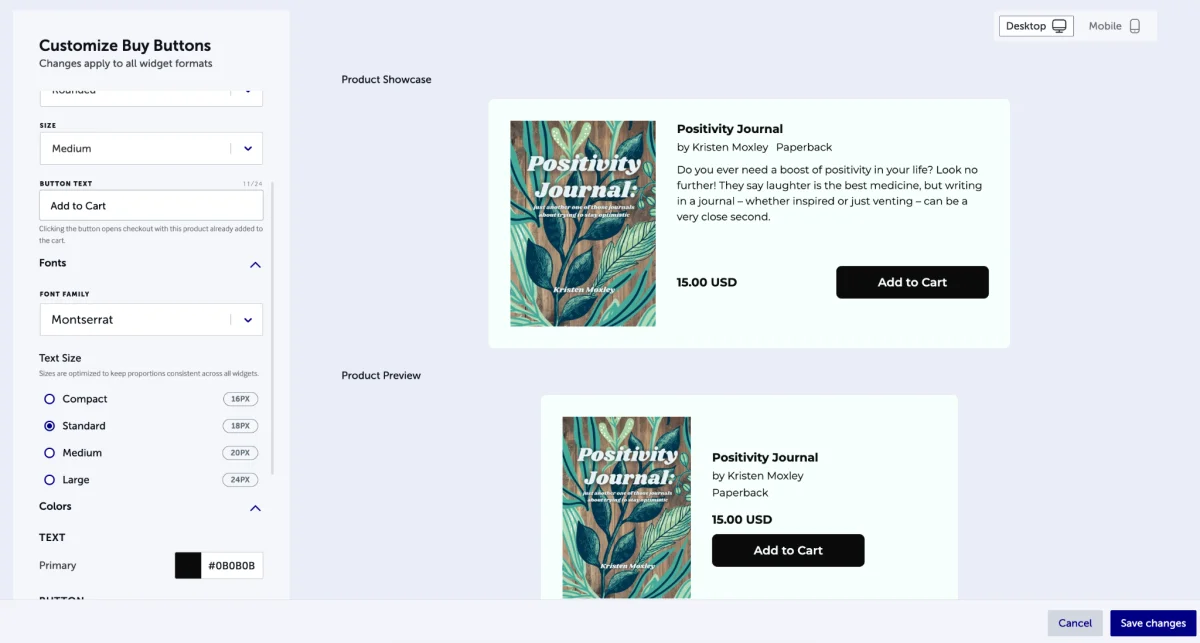
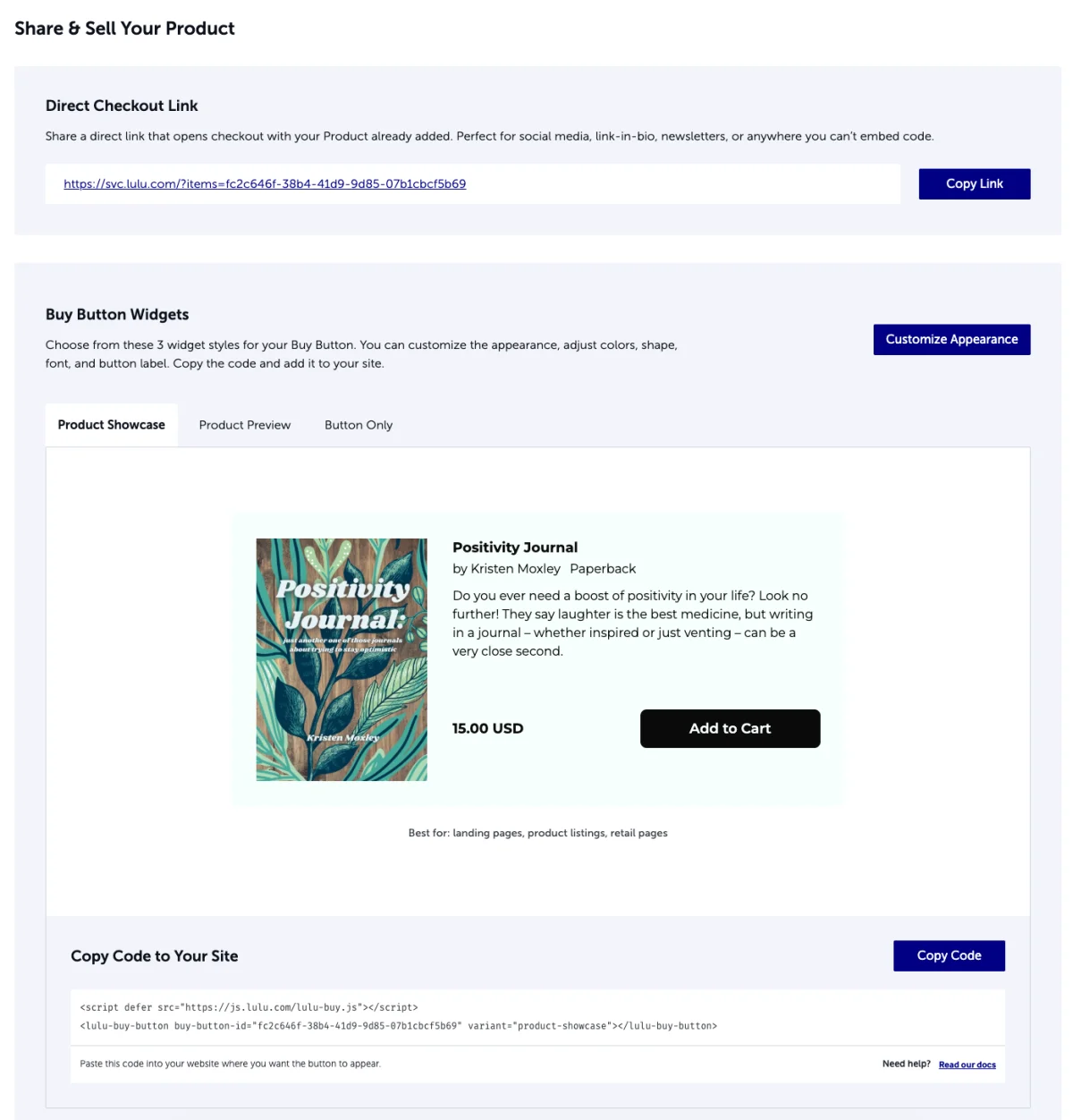
Direct Buy Buttons and Direct Checkout Links provide a lighter setup for sellers who don’t want to build an online store or connect an ecommerce platform. To create a channel, users complete Stripe onboarding. They can then open the channel, select Add Product, and choose a published print project. Each product needs a name, description, and price. After adding it, sellers can customize the button’s appearance and copy a checkout link to place wherever they sell or promote the book.
Manage products and store settings
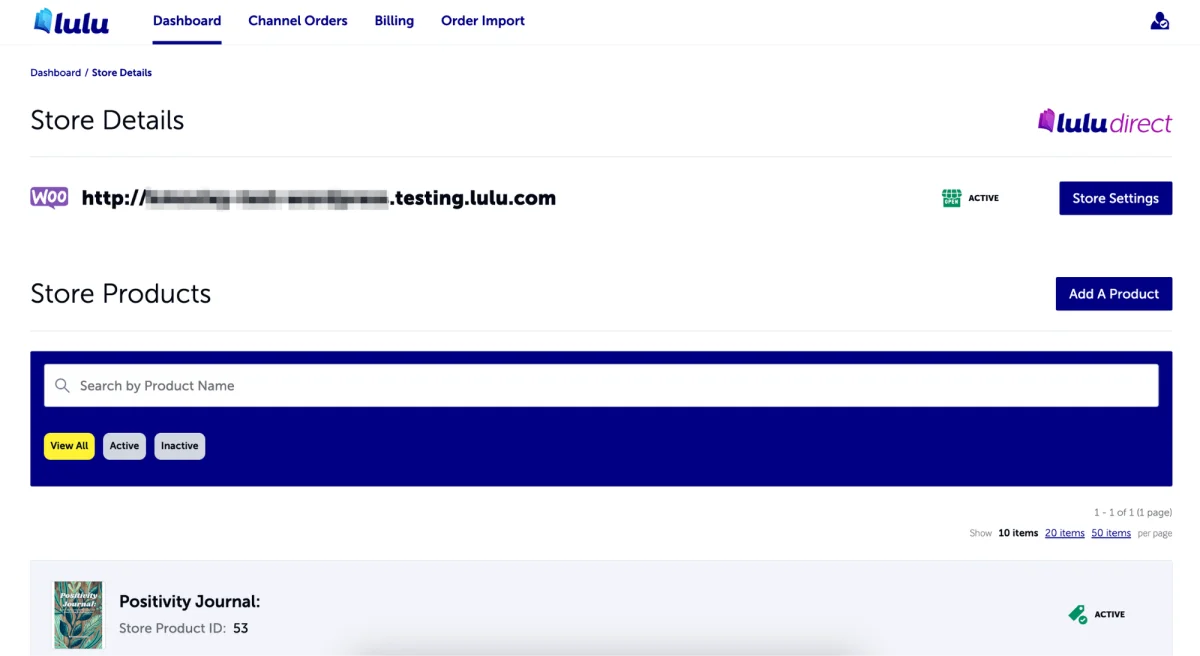
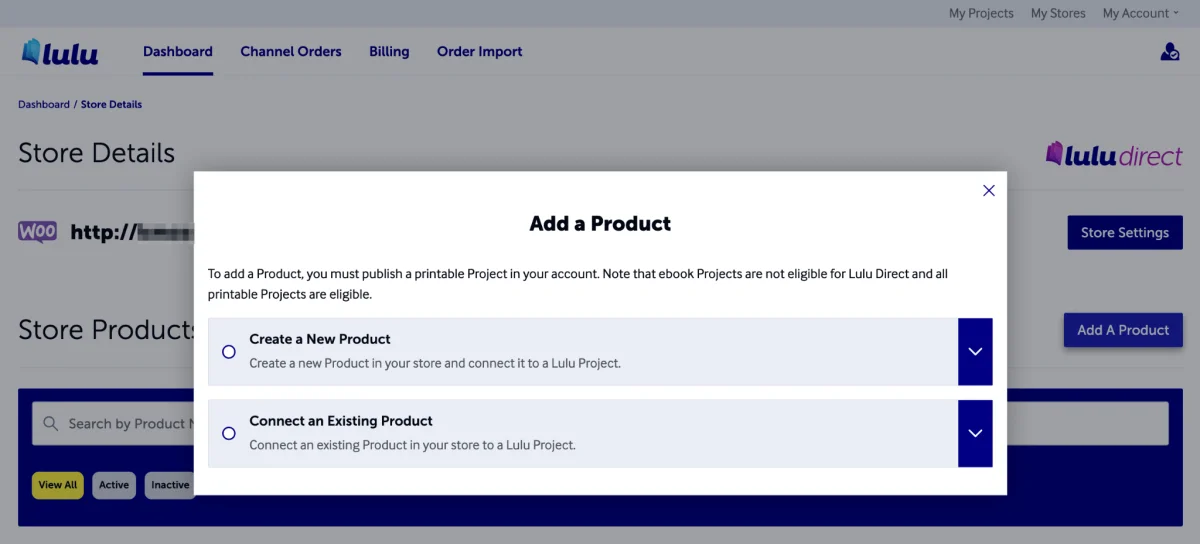
Selecting a connected store’s URL from the dashboard opens Store Details. From there, sellers can review products by title or status, open product details, add products, and adjust store settings. Adding a product offers two paths: connect an existing product in the store or create a new one from the page.
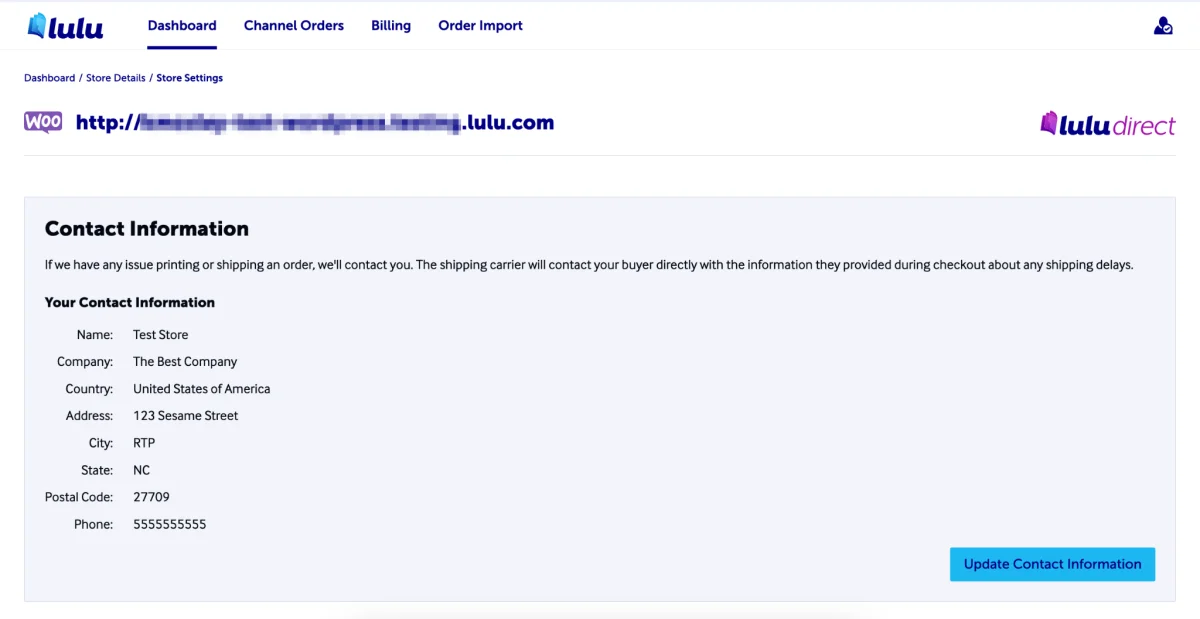
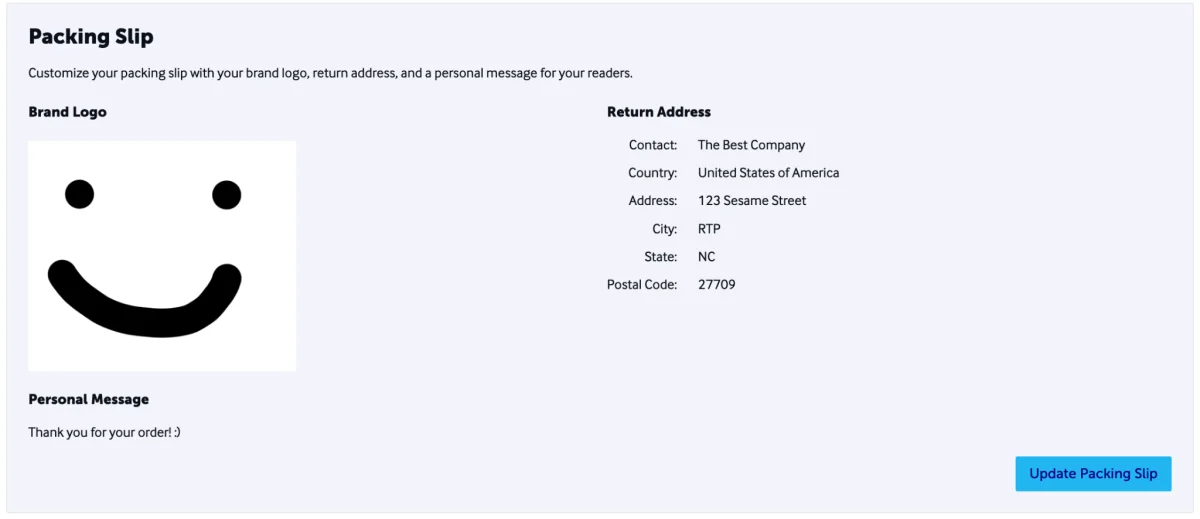
Store Settings hold the seller’s contact information, which Lulu uses if a printing or shipping issue arises. Sellers can also add a logo, return address, and personal message to a custom packing slip. Orders already ship without Lulu branding; these fields let sellers add their own presentation to the package.
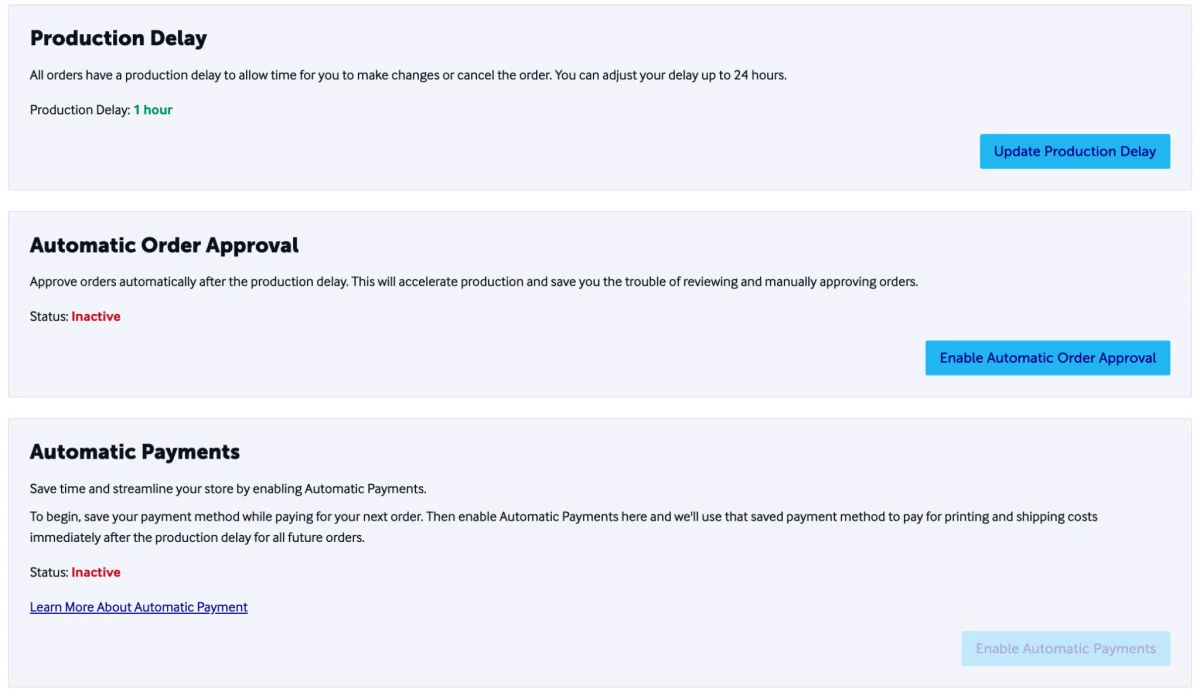
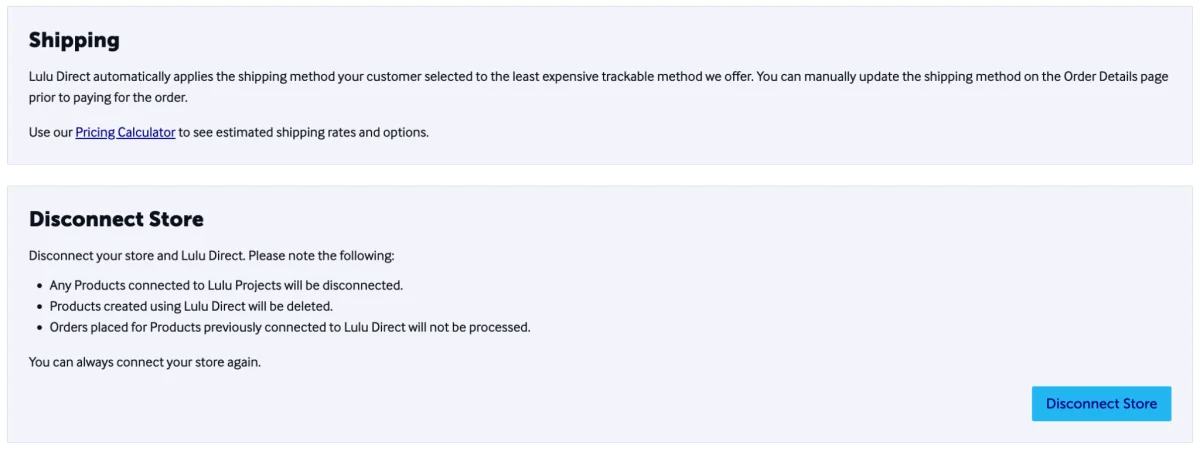
Three settings shape how orders move toward fulfillment. Production Delay sets the window in which an order can be canceled, from 60 to 1,440 minutes. A 1,440-minute delay allows manual cancellation for up to 24 hours after payment. Automatic Order Approval can remove the need to approve each order manually once that delay ends. Automatic Payments can use a saved payment method to pay for orders without manual payment. Lulu also links to guidance on shipping and disconnecting a store.
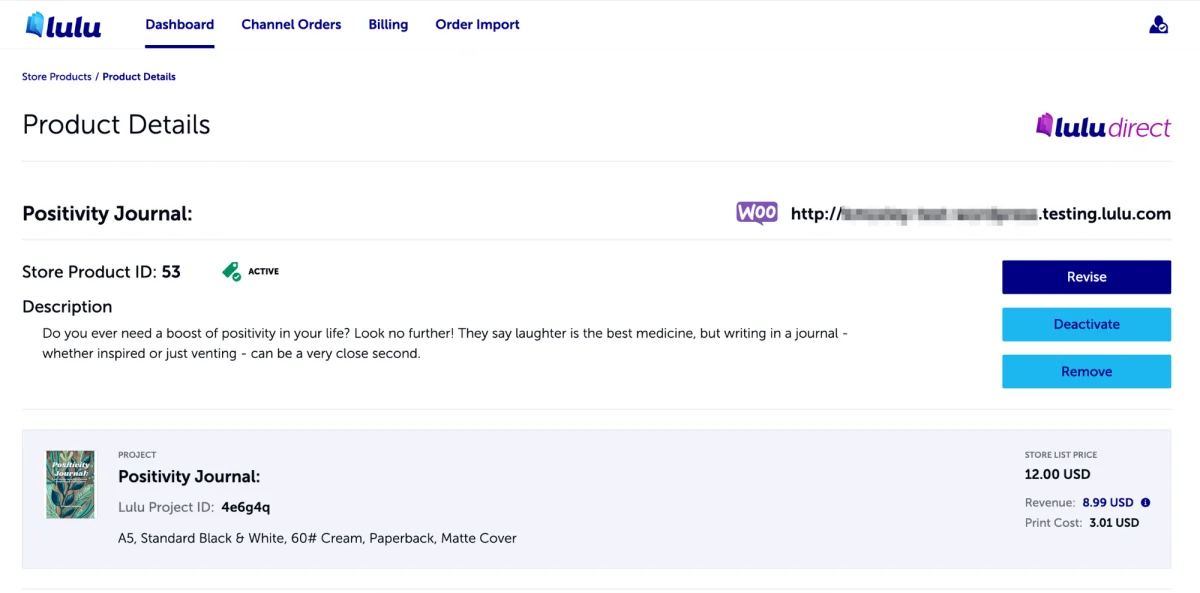
Connected products can be revised, deactivated, or removed from their individual detail pages. Sellers can also organize book formats as variants within one listing—for instance, hardcover and paperback editions or different trim sizes. Bundles group multiple books into one listing, such as a title with a companion journal, a series set, or a classroom workbook collection. Together, these options give readers clearer ways to choose formats and purchase related books, while Lulu manages fulfillment.
For setup questions, Lulu points users to its Knowledge Base and Contact Support page. The dashboard’s range of controls means sellers can begin with a single product or simple checkout link, then add store connections, order automation, and product options as their direct sales operation takes shape.